

- Document versioning lets you approve a new version of a document or log a minor change, and view, download or restore earlier versions.
- Approving a new version of a document moves every place that uses it to that version, unless you untick the place in Republish options.
- People who’ve confirmed a document on a checklist needn’t confirm a new version, unless you tick Require recompletion.
Draft and approved
The document’s status and version show next to its title. After approval:- On a document that isn’t controlled, you keep editing, and the last approved version stays in use until you approve the next.
- A controlled document is locked, so click Return to draft first.
Approve a new version
Open Approve version
Summarise what changed
Choose where to republish
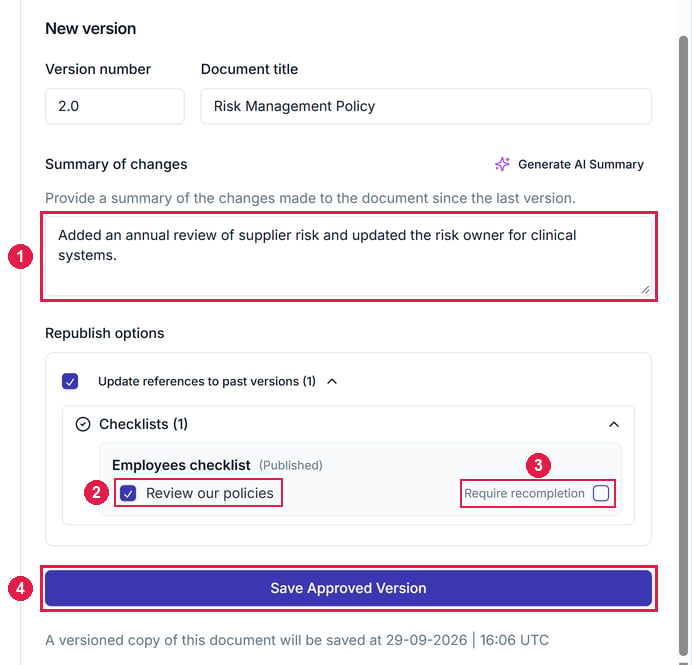
Approve version on Risk Management Policy, with Republish options expanded. 1 is Summary of changes. 2 is a place the document is used, here the Review our policies resource on the Employees checklist. 3 is Require recompletion, which asks people to complete that item again. 4 is Save Approved Version.
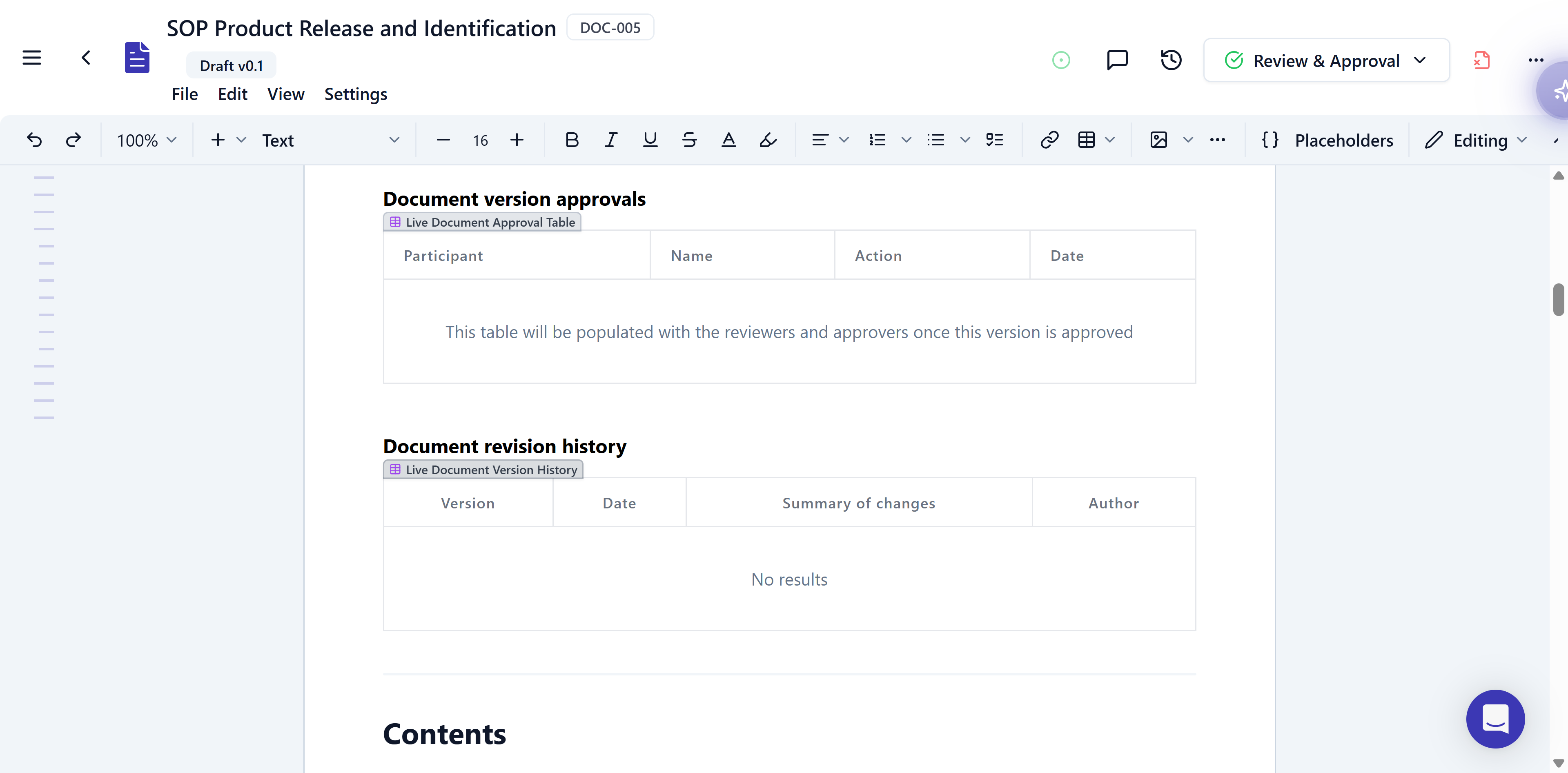
Two live tables in a draft: Document version approvals above, which lists the reviewers and approvers once this version is approved, and Document revision history below, built from the Document Version History placeholder. Both are empty here, since this draft has no approved version yet.
Log a minor change
On a document that isn’t controlled, Approve → Log changes to draft saves a PDF snapshot to the version history, with you as the author. It has no republish options, so the last approved version stays in use everywhere.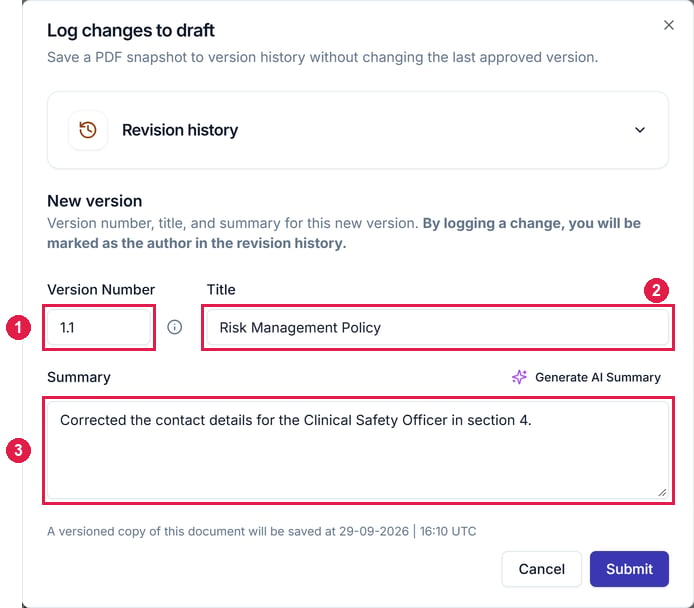
Log changes to draft. 1 is Version Number, suggested as the next minor version. 2 is Title. 3 is Summary, where you describe the minor change.
Republish options
Republish options covers the places a document can be used. Each points at one approved version, a fixed PDF, so editing the draft changes nothing people see there.- Move or keep: leave a resource ticked to move it to the new version, or untick it to keep the old one.
- Recompletion: a checklist item also has Require recompletion, unticked by default. Leave it off and people who’ve already confirmed the item stay complete until it refreshes; tick it to ask them to confirm the new version.
- Label and description: republishing swaps the file but keeps both.
- Controlled documents: you choose in Send for review and approval, and resources move once it’s approved.
Approved versions
Open View → Version History → Approved Versions, or use a document’s ⋯ menu → Versions on the Documents tab. From a version’s ⋯ menu: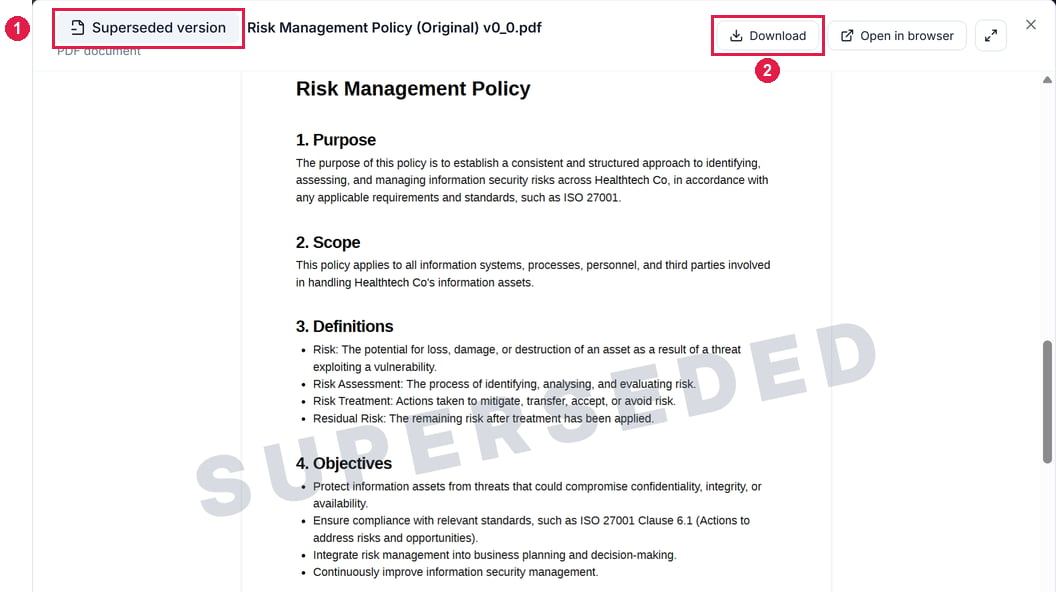
The original version of Risk Management Policy, 0.0, opened with View File after version 1.0 replaced it. 1 marks it as a Superseded version, and the PDF itself is watermarked SUPERSEDED. 2 is Download, which saves that version's PDF.