- A task can have one or more owners, a due date and a recurring schedule.
- You assign a task to people, not to roles or groups.
- A recurring task’s due date moves forward by one interval each time you complete it.
Find the tasks you need
Narrow a long task list with these controls:- Filter tasks searches every category at once.
- The filter row narrows the list further, and the funnel icon reveals a second row.
- Clear all resets every filter across both rows.
- The two view buttons switch between tasks grouped by category and one flat list.
- View lets you reorder or hide columns.

Both filter rows: My tasks, Status, Assignee and Products on top, Frameworks, Type, Priority and Category revealed below, with Clear all on the right.
Assign owners
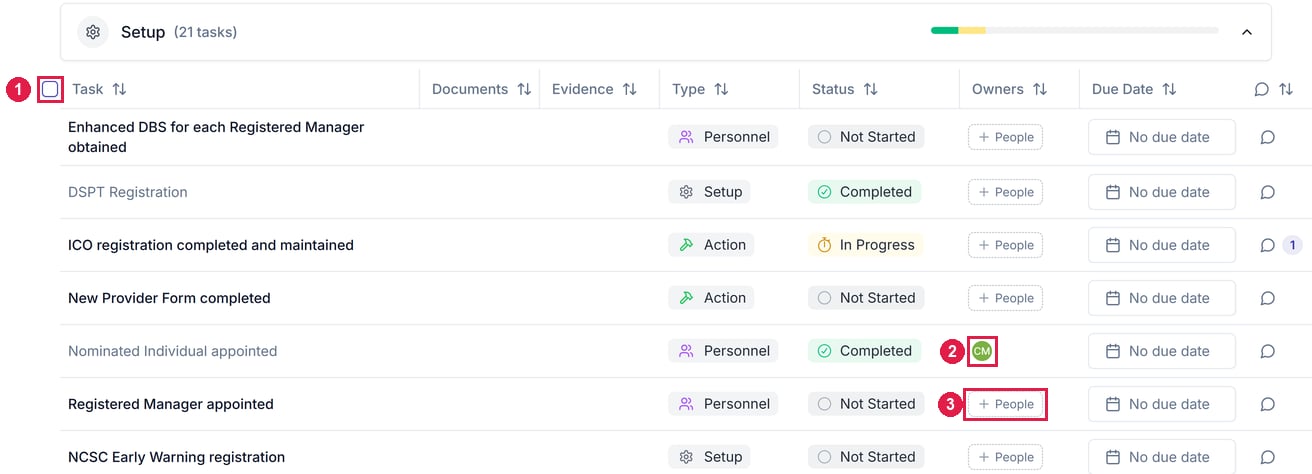
Assign a task to one or more people, not roles or groups:- One task: use its Owners column, or Assignees on its sheet.
- In bulk: use the header checkbox to select every task in a category, then apply a bulk action.

A Setup category task list. 1 The bulk-select checkbox. 2 An already-assigned owner. 3 The People control for assigning an unassigned task.
Set a due date and recurrence
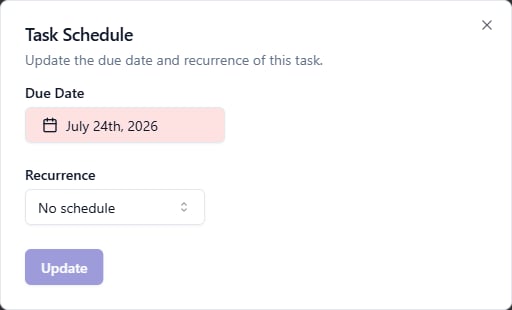
Any task can have a due date, and a recurring schedule suits work that comes round again, such as a backup restore test every 6 months.Open the schedule
Pick a date and how often it repeats

The Task Schedule dialog: a due date, and how often the task repeats.
Comment on a task
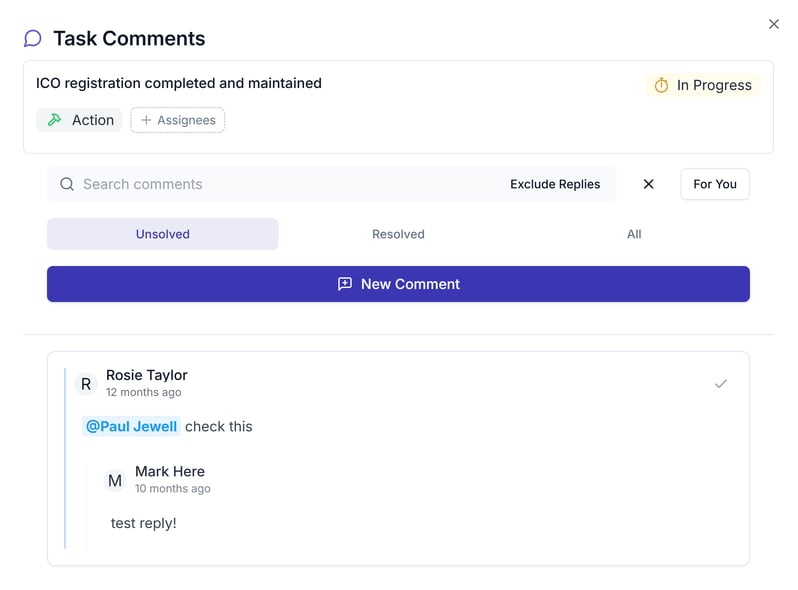
A task’s sheet shows how many comments are unresolved in Comments.- To write a comment, click Add comment to open the task’s comments, then New Comment.
- Type @ to mention someone. They’re notified according to their Comments and Mentions settings.
- To find what still needs an answer, filter the thread by Unsolved, Resolved or For You.

A task's comments: filters for Unsolved, Resolved and For You, the New Comment button, and a thread with an @mention and a reply.