

Quick summary
- Notifications arrive by In-App, Email or Slack, each a per-category toggle in your own preferences.
- Organisation-wide, Email goes to a list of addresses, and Slack to a channel subscribed with a copied command.
- Slack needs your workspace’s Slack integration connected first, for personal and organisation notifications.
The 3 channels
Organisation-wide routing works differently
Unlike your personal per-category toggles, each Organisation Notifications category shows: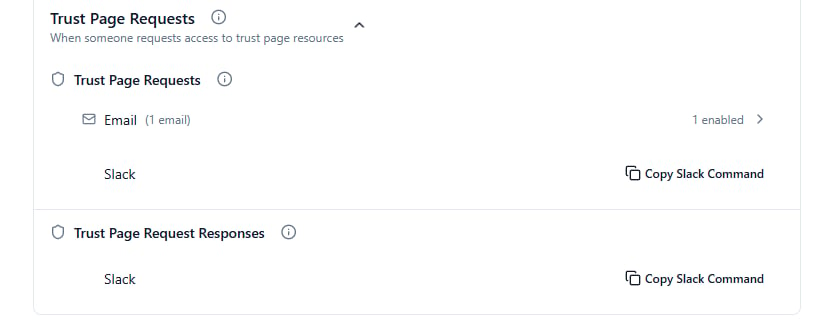
Trust Page Requests under Organisation Notifications: an Email row showing how many addresses are enabled, and a Slack row with Copy Slack Command.
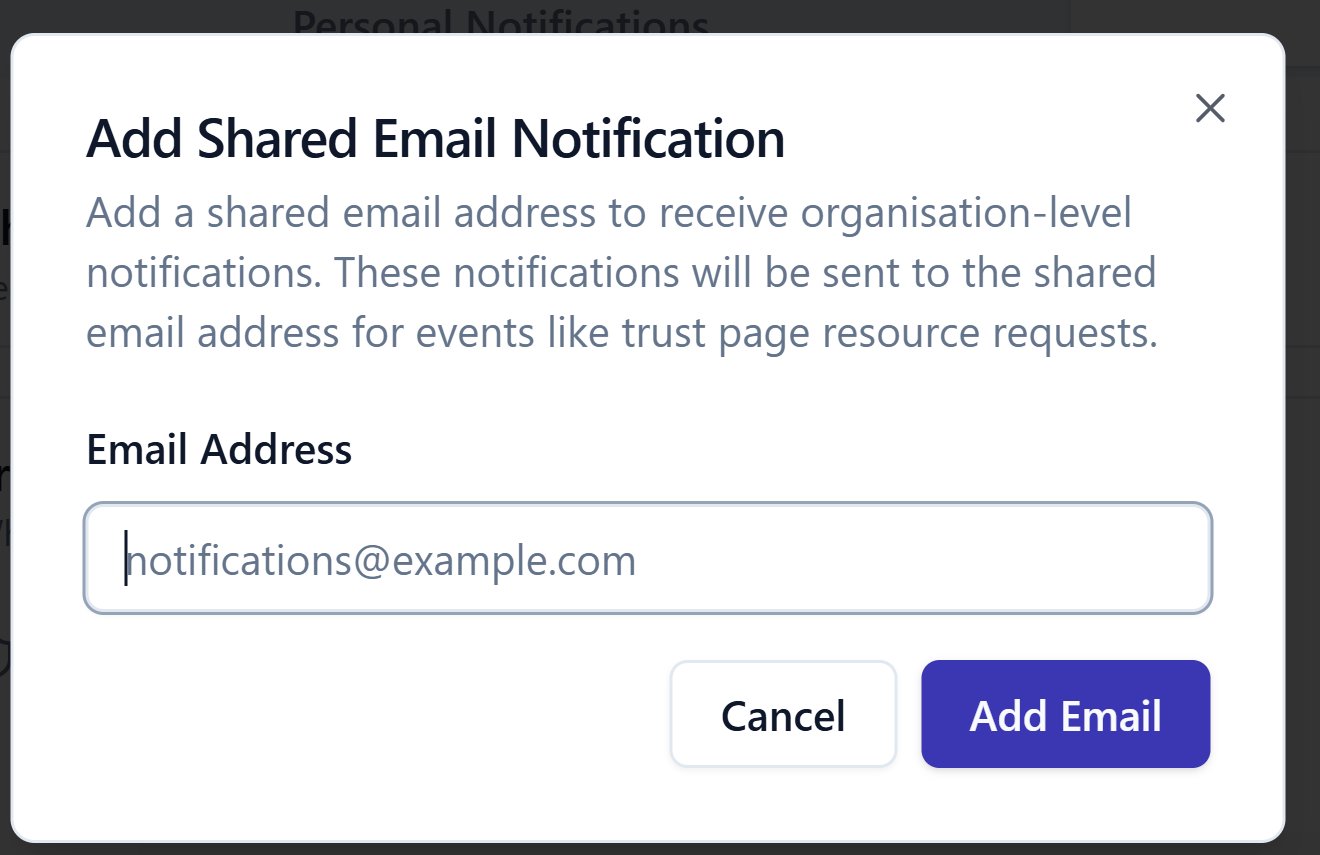
Adding a shared email address, reached by expanding an Email row's address count.
Related articles
What triggers a notification
Every category and what fires it, in both scopes.
Personal notification settings
Setting your own In-App, Email and Slack preferences.