

Quick summary
- The sidebar on the left is how you get around. It’s split into Main, Areas and Workspace.
- The bell and your avatar in the top right cover notifications and your account. The chat bubble, in the bottom right, reaches the Assuric team.
Sign in
Assuric runs in the browser and uses passwordless sign-in. Enter your email address and we’ll send you a secure link and code. Click the link or enter the code to open your workspace.- Single sign-on (SSO): Sign in with your Google account, or get in touch if your organisation uses a different identity provider and we can arrange custom SSO.
- Multi-factor authentication (MFA): Add MFA with an authenticator app, and sign-in also asks for a one-time code from your phone. An Admin can require it for chosen permission levels.
If you’re not receiving the link, check the address matches the one you were invited on.
Get familiar with the sidebar
The sidebar is how you move around Assuric. To give yourself more room, collapse it using the button next to your workspace name.- At the top, Go to (Ctrl+K, or Cmd+K on a Mac) jumps to any page or framework, and Ask (Ctrl+J) opens Ask Assuric, our AI assistant.
- Main holds the features every workspace has, such as Frameworks, Tasks, Documents, People and Trust Centre.
- Areas holds Quality, Clinical Safety, Clinical Governance and Privacy & Security. You’ll only see the ones your workspace has access to. If you need another, get in touch with our team!
- Workspace holds Activity (your activity log), Integrations and Settings.
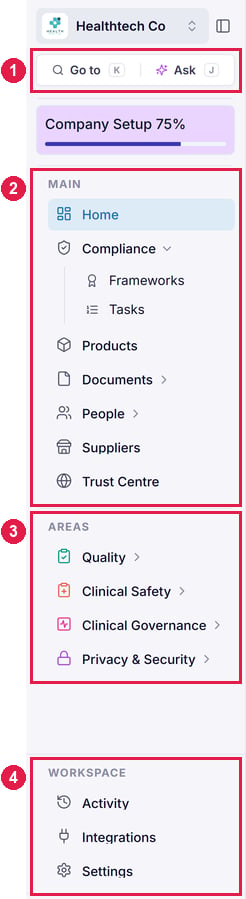
The sidebar. 1 Go to and Ask. 2 Main. 3 Areas. 4 Workspace.
What’s in Main
What’s in Areas
Other things you need to know
- Support chat. Click the chat bubble in the bottom right to message our support team about anything you’re stuck on. You can attach screenshots, and your past conversations are saved so you can pick them back up later.
- Assuric AI. The AI bubble opens Ask Assuric on whatever page you’re on, so you can keep it beside your work instead of navigating back to Ask.
- Notification preferences. Assuric notifies you about things like tasks assigned to you, upcoming due dates and items waiting for your approval. You choose which ones are emailed to you and which only appear in Assuric. Change them from Notification Preferences in your account menu. See Personal notification settings.
Screenshot coming soon. We’ll replace this with a new screenshot of the top right of every page, showing the notification bell and your account menu.
Related articles
Company set up
The information the rest of the platform draws on.
Inviting people
Get your colleagues into the workspace.