

Quick summary
- When your product or its use changes, update the hazards it affects, then approve a new version.
- Editing or deleting a linked cause or control changes it everywhere, so check ⋯ → References first.
- Archive a hazard, cause or control instead of deleting it: it stays available for audit.
Archive instead of deleting
An archived hazard, cause or control:- gets an (ARCHIVED) prefix on its ID;
- stays available for audit;
- drops out of the default view until you set the funnel’s Archived filter to Yes.
To archive a control, click ⋯ → Archive on its row in the Controls tab. Unlink from all mapped causes is ticked when the dialog opens: untick it to keep the links, then click Archive control to confirm.
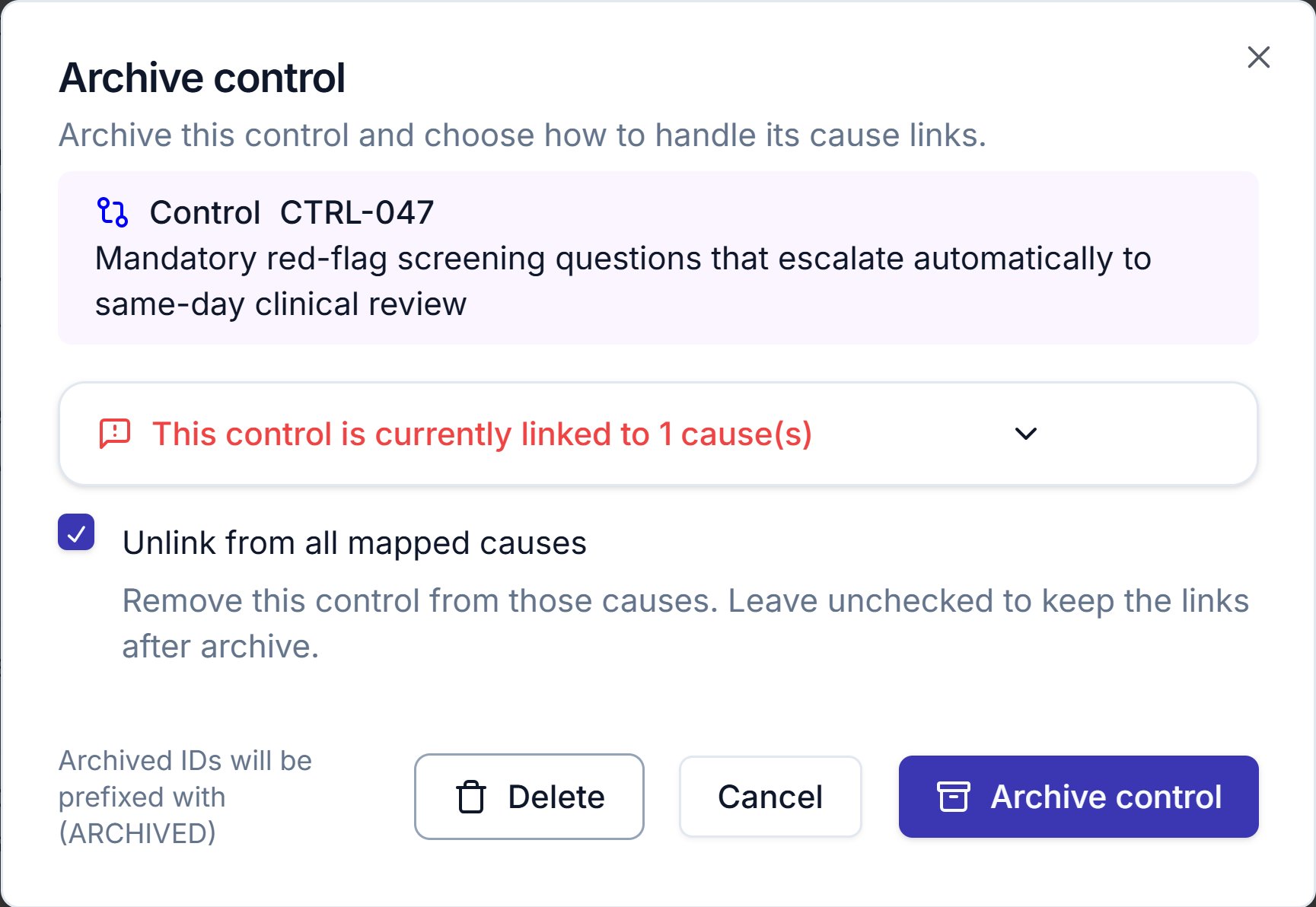
Archive control for CTRL-047, which is linked to one cause. Unlink from all mapped causes is ticked when the dialog opens.
When something changes
When a customer reports a problem, a release changes how the product behaves or an incident shows a control didn’t hold, work through the hazards it touches:1
Find the affected hazards
Filter the log by product, or open a cause or control and check ⋯ → References.
2
Update the hazards
Update the causes, controls and evidence, and re-score residual risk if the controls changed. Then set each hazard’s status to match where it now stands.
3
Approve a new version
Approve a new version with Republish options ticked, so the published copies move to it.
Editing a linked cause or control
The change appears immediately in every hazard using it, including hazards on other products. Evidence works the same way: replacing a file updates it everywhere the control is used, including in any version you’re preparing to approve.Deleting a linked cause or control
Before you delete, check ⋯ → References, which lists by ID every hazard using a cause, or every cause and hazard using a control. The delete confirmation shows the same list.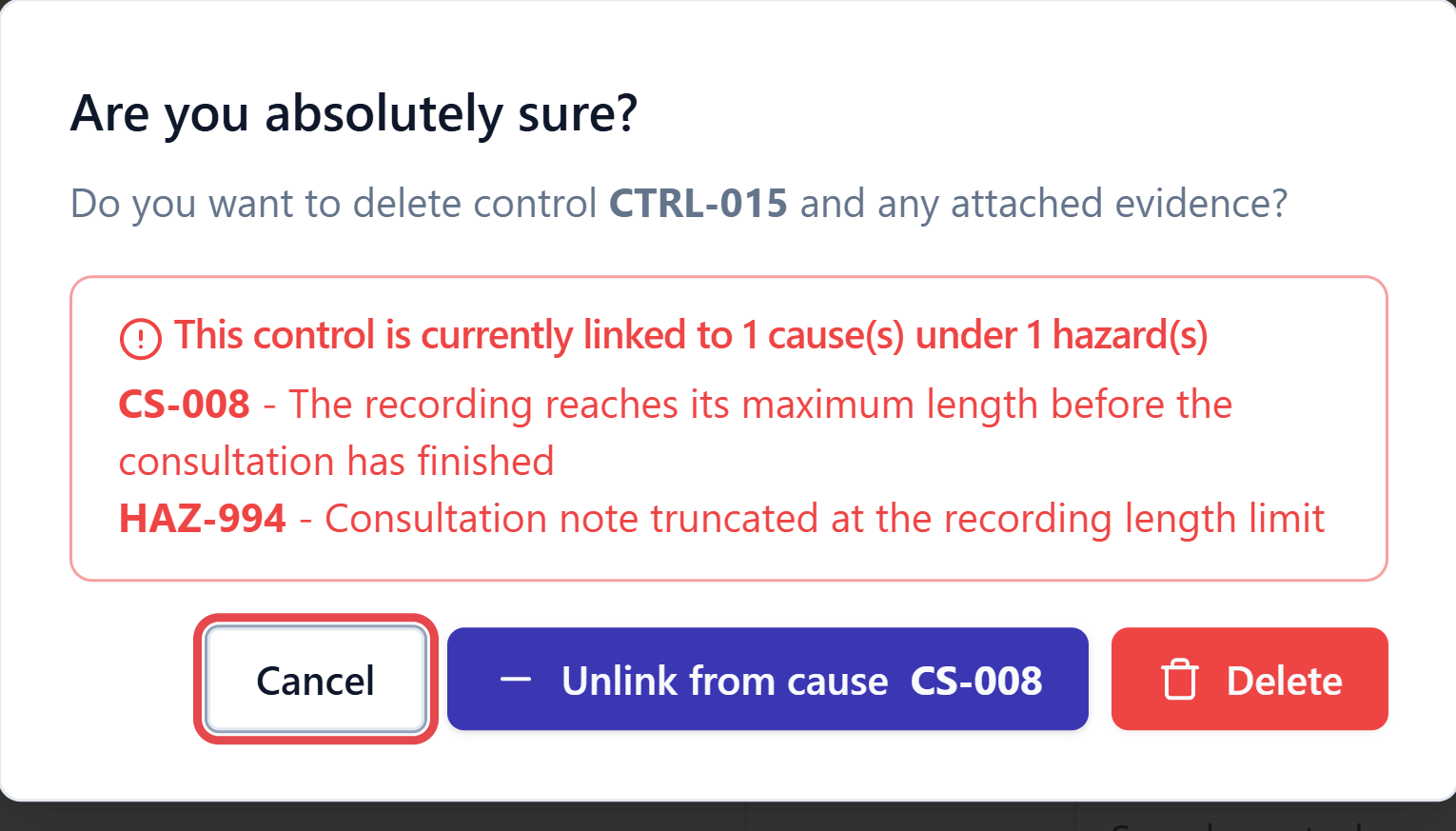
Deleting a shared control warns you what else it is attached to. Cancel is the safe way out.
Related articles
Hazard log overview
How the hazard log fits together, and how to read its table.
Causes, controls and evidence
The linking model behind what propagates where.